Basic Screen
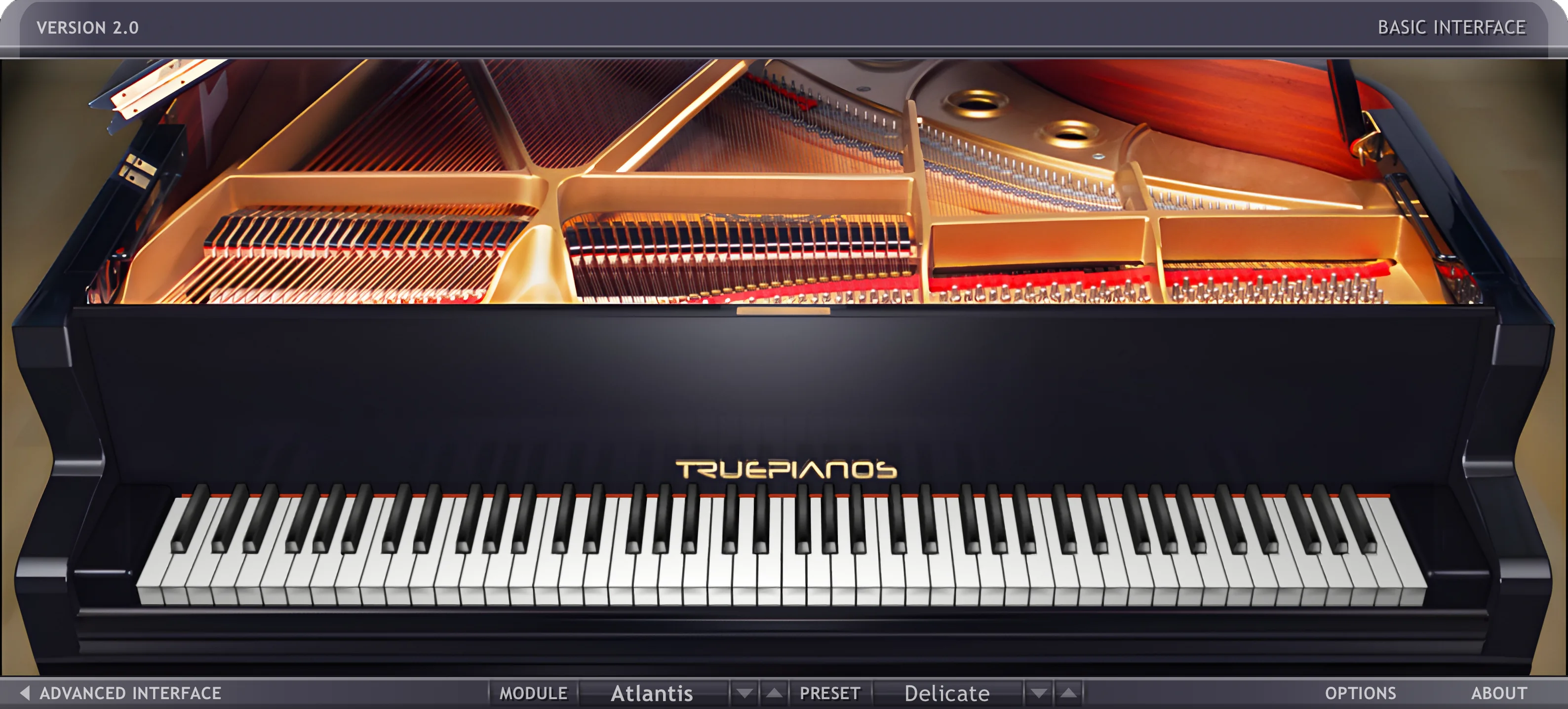
This is a short overview tour of TruePianos with screenshots. The main graphic interface looks like this:
TruePianos Basic Interface
The piano keyboard (also reacts to mouse clicks), basic controls, Options and About buttons, as well selectors for switching piano modules and presets. Each module represents a different variation of a piano, while presets change the character without affecting the basic sound. The hierarchy is as follows:
| Module A | Module B | Module C |
|---|---|---|
| Preset 1 | Preset 1 | Preset 1 |
| Preset 2 | Preset 2 | Preset 2 |
| ... | ... | ... |
| Preset n | Preset n | Preset n |
Advanced Screen
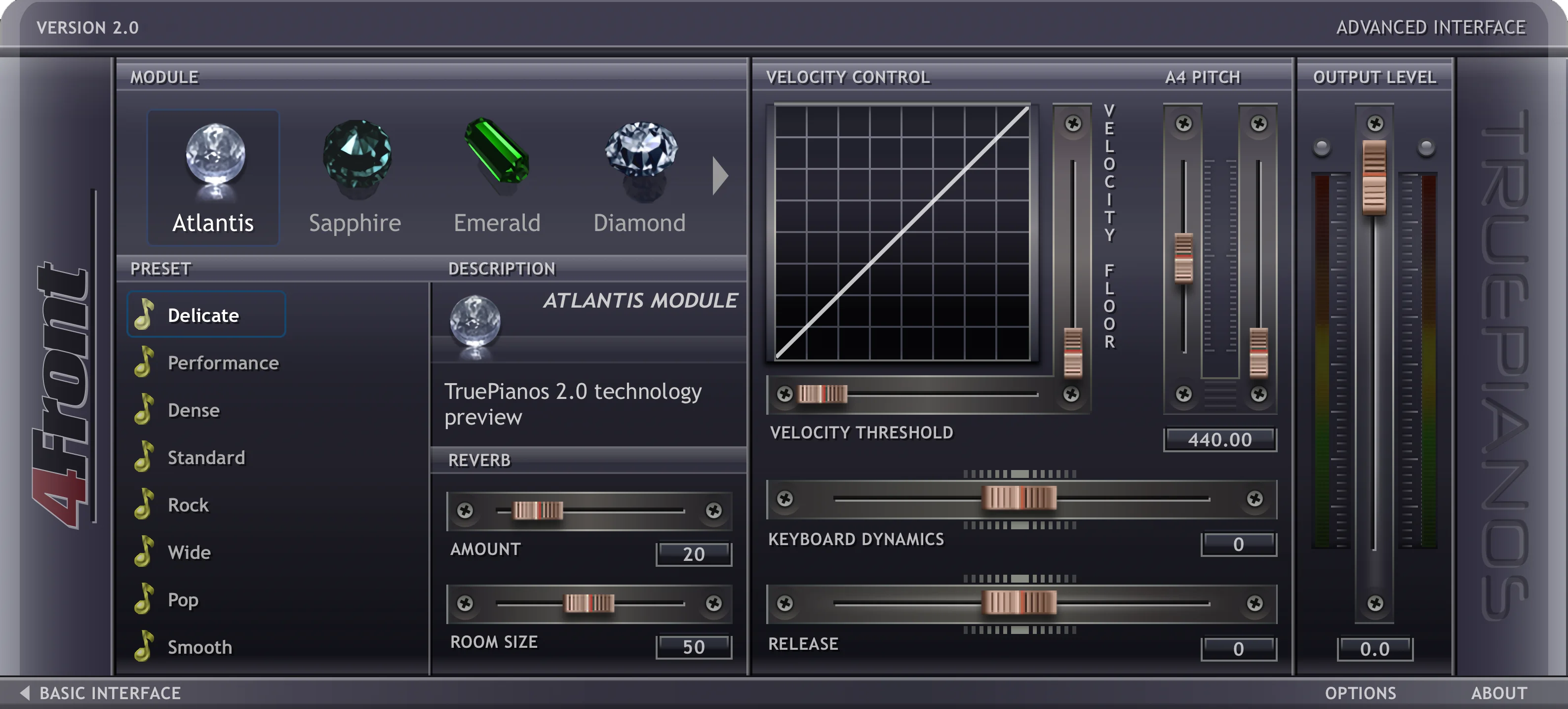
Clicking the advanced interface button or the header of the interface will switch the GUI to the advanced settings page.
TruePianos Advanced Interface
The advanced preset selector and sliders allow you to control parameters of the instrument, such as keyboard sensitivity, dynamic response of the piano, release time of the notes, tuning, and volume.
Options Screen
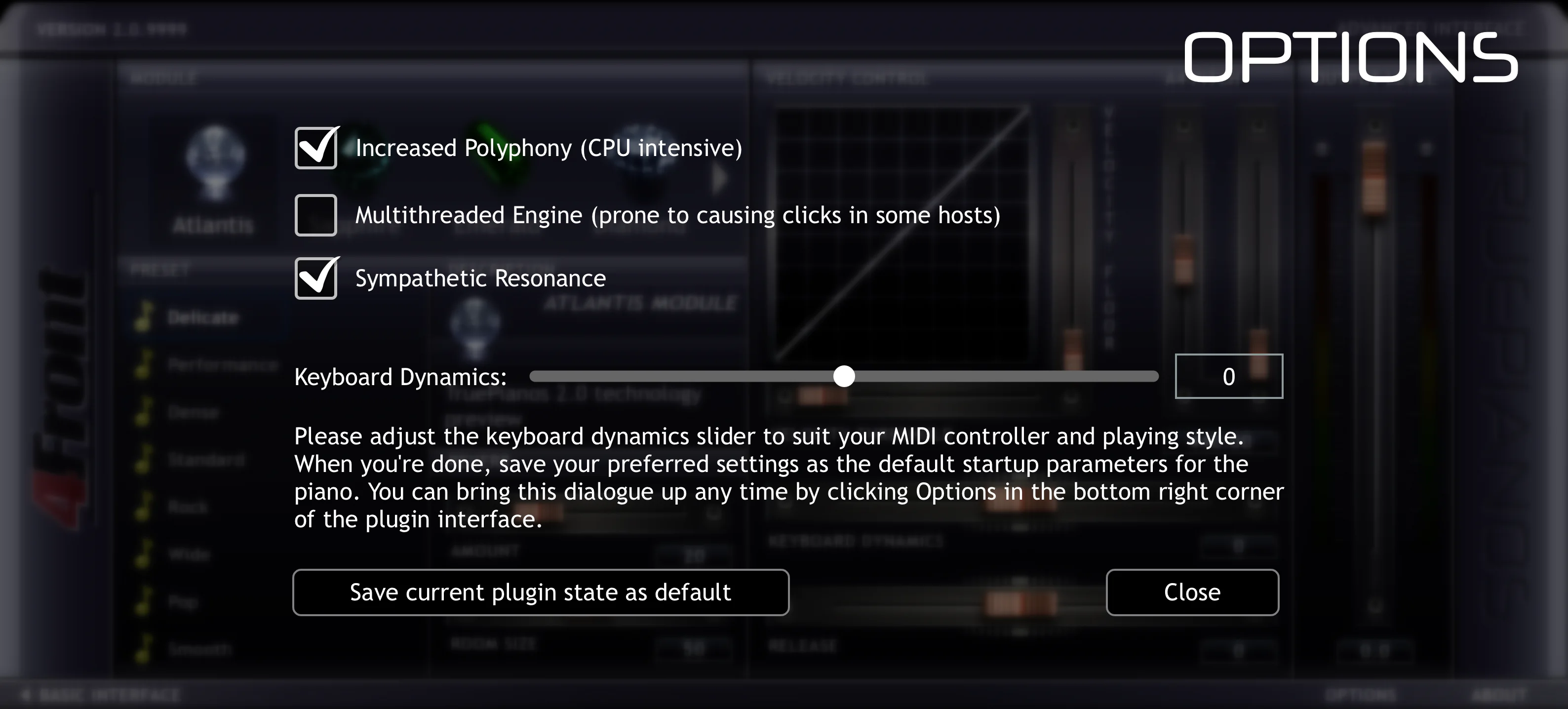
You can access the options screen by clicking the Options button in the interface's lower right corner. Also, when the software is started for the first time, the Options screen will pop up automatically. Do not close it without checking. Your further piano experience depends on how well you set up the dynamic response of your MIDI keyboard.
TruePianos Options
For example, for the CME UF8 keyboard values, -20 to -17 seem to work well; for Yamaha keyboards, the slider should be around zero. Please tune it to match your preferred touch response - just keep playing as you move the slider, and if it doesn't respond strongly enough, move the slider to the left, otherwise if the notes come too bright, move the slider to the right. When the tuning is finished, press 'Save current plugin state as default' and then 'Close'.
In addition to that, there are options to turn on Sympathetic Resonance, Increased Polyphony mode, and multi-core processor support. Note that certain applications (such as Logic Pro, ProTools, Cubase) have different ways of handling plugins running on several processor cores. Although recent versions work with it fairly well, nevertheless if you experience inconsistent performance and interruptions in TruePianos sound, you may want to keep this option switched off.
System Requirements
TruePianos system requirements vary, depending on which TruePiano module is used. The future updates to TruePiano Core engine will most likely affect these requirements. Below are estimations based on the current version of TruePianos.
Windows minimum requirements
- Windows 7 or newer
- 2.0 GHz Intel Core Duo or multi-core AMD CPU with SSE2 support
- 256 MB of free RAM
- a VST host (e.g. Cubase, Studio One, REAPER, FLStudio, etc.)
- a Soundcard with stable ASIO drivers
Mac minimum requirements
- Mac OS X 10.10 or newer (including MacOS Monterey)
- 256 MB of free RAM
- AU or VST host (e.g. Logic Pro X, Garageband, Cubase, DP, Ableton)
To use TruePianos with all features enabled, the following minimum configuration is recommended:
Windows recommended
- Windows 10 64-bit
- 2.2 GHz or faster Intel-compatible processor
- 512 MB of free RAM or more
Mac recommended
- 2.2 GHz or faster Intel processor / Apple Silicon (M1)
- 512 MB of free RAM or more
Copyright © 2005-2024, 4Front Technologies.
All registered company names, logos or trademarks are the property of their respective holders.